
Help Center · Stories and clips
Editing a clip
Open a clip in the Library, or click Edit in the story editor. All changes are saved automatically. On the right you always see the preview in a phone frame; it reloads after every change.
Which stories the clip is in
At the very top you see which stories use the clip. Changes apply everywhere. Next to it, Add to stories and Add put the clip into further stories, where it goes to the end.
Title and tags
- The title is only for you; viewers do not see it.
- Tags help with filtering in the library. Type a word and press Enter or comma.
Thumbnail
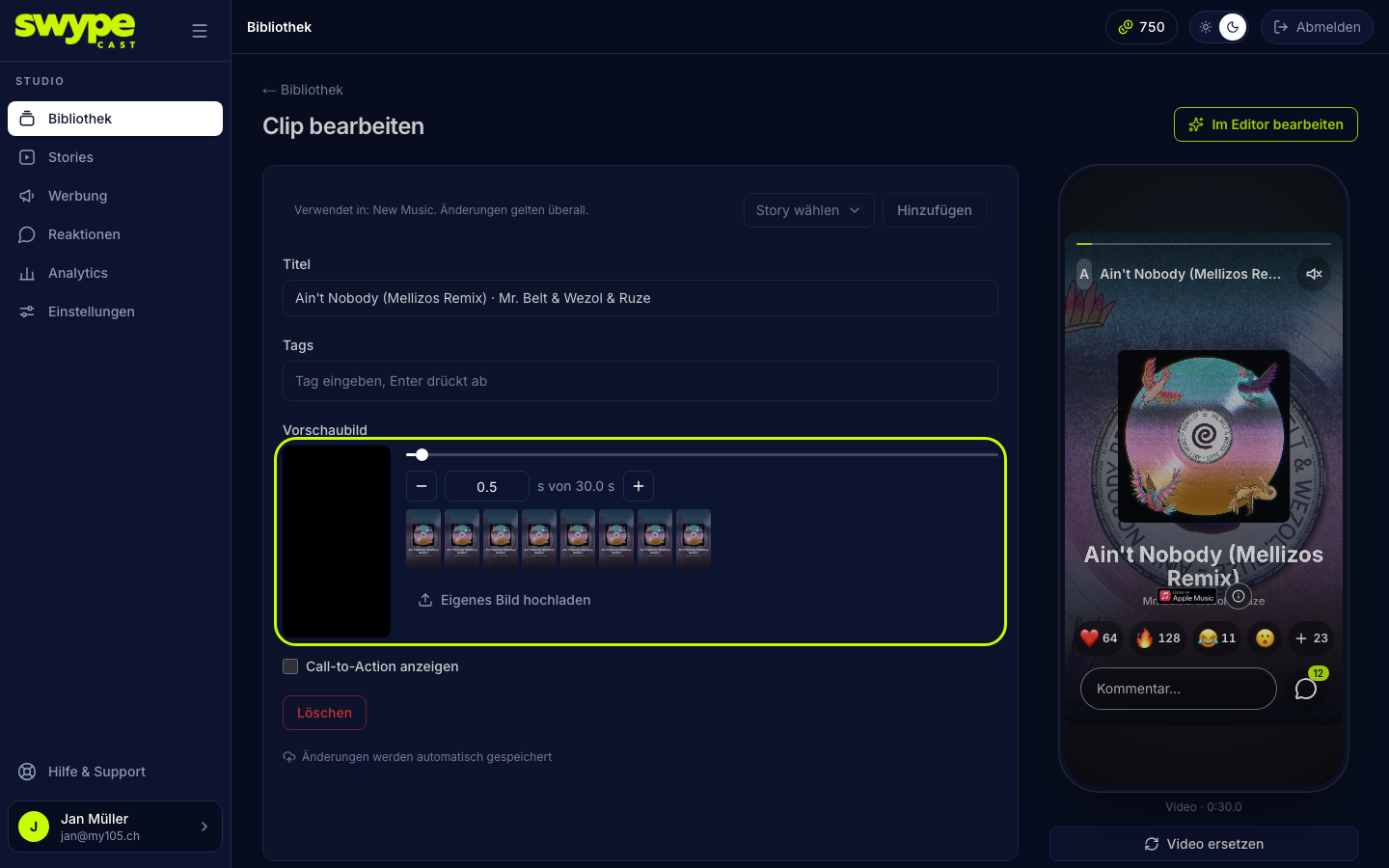
You see the thumbnail (also called "poster") in the library, when the link is shared, and briefly before a clip starts. You can choose it for video clips; for audio + image it is the picture.
- In the Thumbnail area drag the slider below the video, or click one of the frames in the film strip.
- Fine-tune: the − and + buttons and the arrow keys move by 0.1 seconds, with Shift by 1 second. You can also type a time.
- Or upload a picture with Upload your own image; it replaces the frame from the video. Choose a frame instead takes you back.
Button in the clip
Tick Show call-to-action to show a button. Details under Button in a clip.
Replace media
Want to fill the same clip with a new file without removing it from every story? Below the preview you find Replace video (for audio + image: Replace audio and Replace image). The new file is uploaded and processed, the old one deleted, the length adjusted. The story assignment stays.
Edit in the editor
At the top right, Edit in the editor opens the clip in the editor. There you add text, filters, tools or music on top of your material and create the clip again. Stories keep it in its place, see Building clips in the studio.
Deleting a clip
Delete sits at the bottom of the page. Before deleting, SwypeCast shows which stories the clip will disappear from. Only Delete for good removes it. This cannot be undone.