
Help Center · Stories and clips
The library: search, filter, tidy up
The library shows all clips of your organisation, whether or not they are already in a story. A clip can be used in several stories at the same time.
At the top there are two tabs: Library with all finished clips and Drafts with clips you started in the editor but have not created yet. Next to them are Create a clip and Upload.
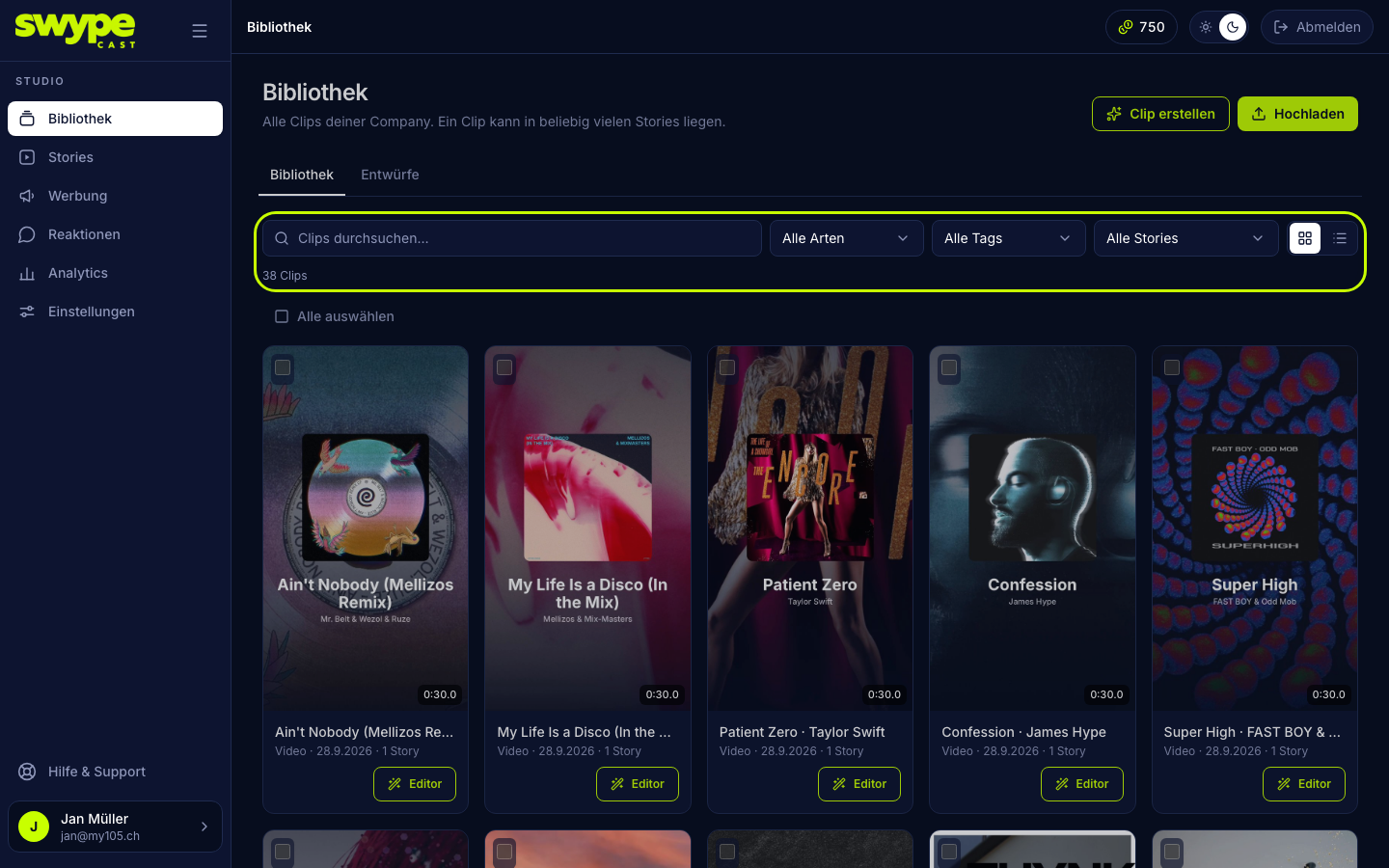
Search and filter
- Search: type part of the title into the search field.
- Kind: only videos or only audio + image.
- Tag: only clips with a particular tag.
- Story: only clips that appear in a particular story.
- View: grid with thumbnails or list with details. In the list you sort by clicking the Name, Length or Uploaded column. The view is remembered.
On a phone only the story filter and the grid/list switch are shown; kind and tag appear from tablet width on.
The newest clips come first. At the bottom you choose how many clips appear per page (20, 50 or 100) and page on. Reset filters clears all filters.
Clips made with AI carry the AI badge.
Tags
Tags are keywords you use to group clips ("Autumn", "Product", "Backstage"). You add them when editing a clip; recently used tags are ready for quick selection.
Selecting several clips
- Tick the clips, or click Select all.
- In the bar above, Add to stories and Add put the clips into a story. They are appended at the end, oldest upload first.
- Or click Delete and confirm. The clips are removed for good.
Opening a clip
- Clicking a clip opens it for editing: title, tags, thumbnail, button, stories and preview, see Editing a clip.
- The Editor button on each clip opens it straight in the editor, where you add text, filters, tools or music, see Building clips in the studio.
Drafts
Drafts lists all clips from the clip creator that have not been created yet. You can search, continue a draft with one click, or select several and delete them. Empty drafts that nothing was put into do not appear and are removed automatically after a short while.