
Help Center · Stories and clips
Uploading clips (video)
Clips are the building blocks of your stories. A clip is a short vertical video, a soundtrack with a picture (see Audio and image as a clip) or a clip you build in the studio (see Building clips in the studio).
What a video clip needs
- Format: MP4, MOV or WebM, ideally straight from your phone or editing software.
- Portrait 9:16, i.e. 1080 × 1920 pixels. Other formats are fitted onto the stage but look less good.
- Length: at most 90 seconds per clip. If a video is longer, SwypeCast cuts it to the first 90 seconds during the upload. A very large file is made smaller first. A message at the top right tells you what happened.
How to upload
- Open Library and click Upload at the top right.
- Stay on the Video tab.
- Drag your video files into the field, or click into it and pick them. You can upload several at once.
- Each clip appears in a list with its title (from the file name). Adjust the titles if you like.
- Click Upload clips and keep the window open until all clips are done.
- Then go back with To the library, or upload more files.
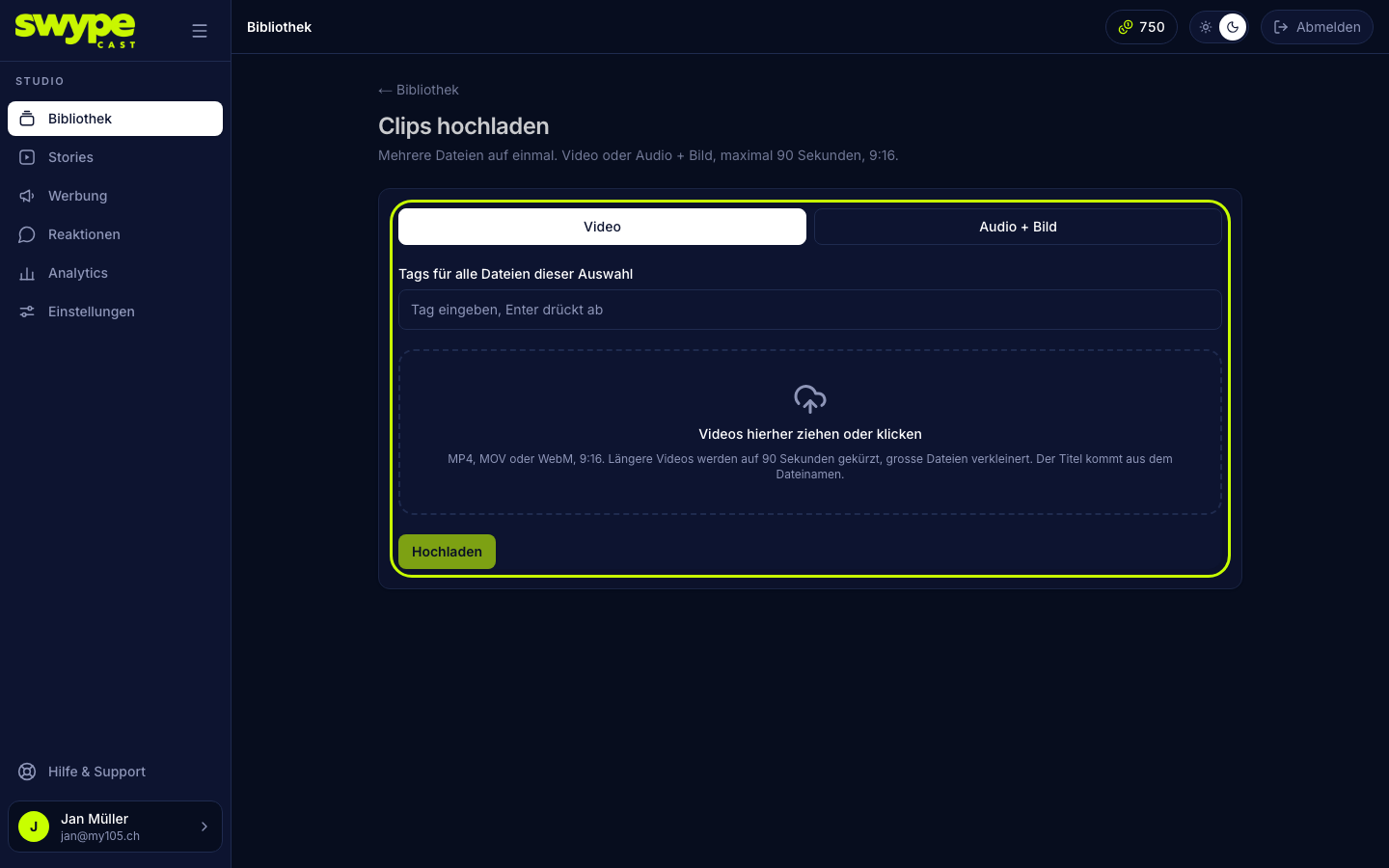
If you are working on a story, you can also start there: in the story's Clips tab, Upload new leads to the same page, and the finished clips land straight in that story.
What happens after uploading
The video is processed and converted into several qualities so it plays smoothly on every device. This usually takes under a minute. Meanwhile the clip shows Processing in the library, afterwards Ready. Now you can use it in stories.
SwypeCast automatically picks a frame from the start of the video as the thumbnail. You can change it later, see Editing a clip.