
Help Center · Stories and clips
Music library and your own soundtrack
Every clip can have a soundtrack: a song from the music library, an audio file of your own or one from the AI. If the background is a video, its original sound plays along if you want.
Where to find it
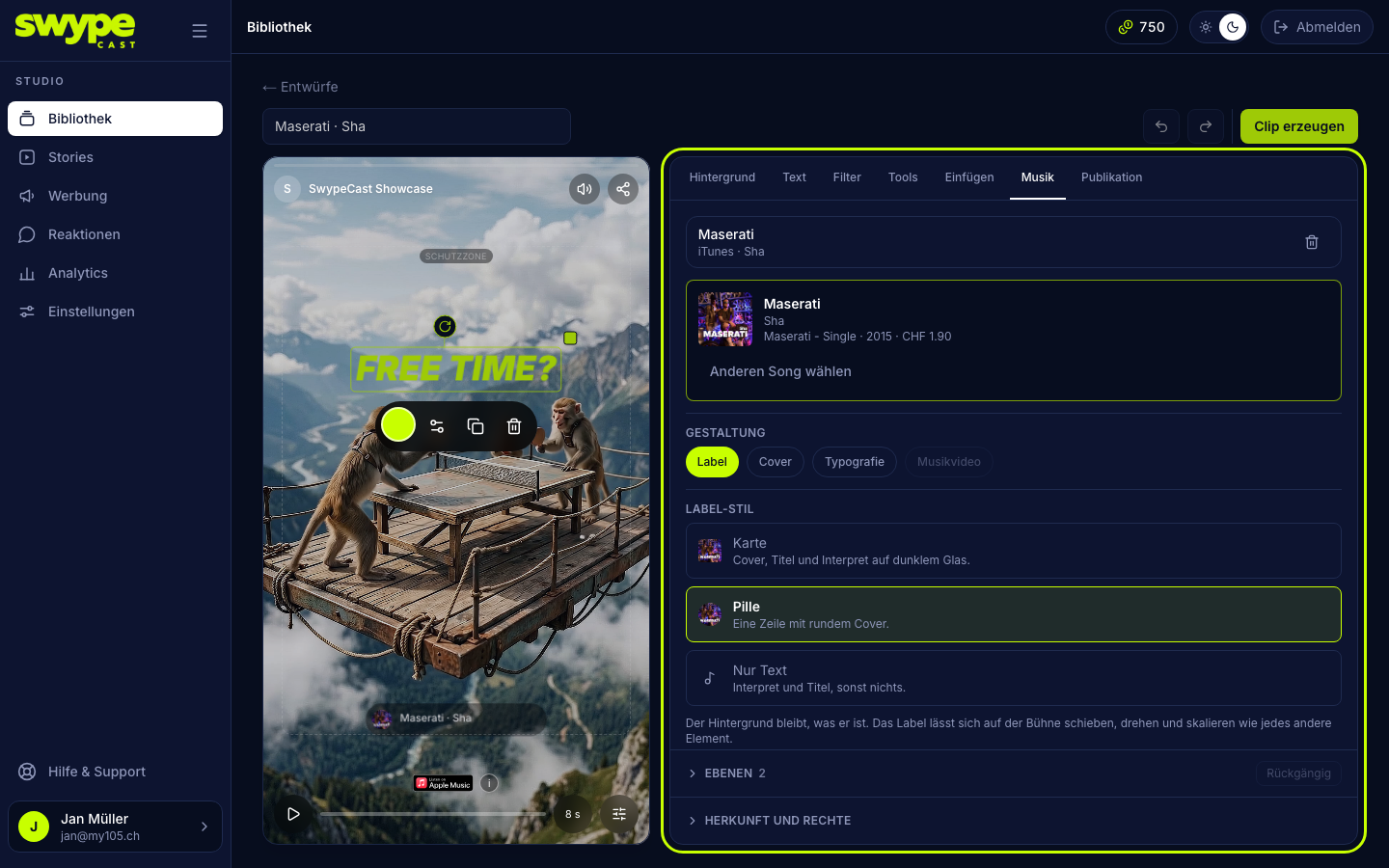
In the editor, in the Music tab. If no soundtrack is on the clip yet, you pick the source at the top: Uploads or Stock Music. Depending on your plan and what is enabled, iTunes and AI are added; they have articles of their own.
Choosing a song from the music library
- Switch to Stock Music.
- Search by title, mood or instrument, or filter by genre and mood (Energetic, Happy, Relaxed, Dark and tense, Epic, Funny).
- Sort by Most used, A to Z, Newest or Shortest.
- Listen plays the song. On the line below you jump anywhere.
- Use puts the song into the clip and opens the passage window.
The songs are by Kevin MacLeod (incompetech.com) and are licensed under CC BY 4.0. The library is open to all organisations.
Using a file of your own
- Switch to Uploads. At the top is the row for uploading: drop a file here or choose one, on a phone Choose a file.
- Pick a file: MP3, M4A, AAC, WAV or OGG, up to 45 MB. A whole song is fine; you choose the passage afterwards.
- Below are all soundtracks of your organisation, including the ones from the AI. The play button plays one, Use puts it into the clip.
Choosing the passage
A freshly chosen song opens the Passage window:
- The waveform shows the whole song. The magnifier zooms in, up to 16×.
- The two handles trim front and back. You move the passage by grabbing it. The From and To fields or the arrow keys on a handle (0.1 seconds, 1 second with Shift) are more precise.
- The play button or the space bar plays the passage in a loop. On the timeline below you listen through the whole song.
- Set the Volume, up to 100 percent.
- Insert takes the passage into the clip.
Afterwards the soundtrack stands at the top of the tab as a card with name, origin and passage. A click on the card opens the passage again, Choose another goes back to the sources, the bin removes the soundtrack.
The passage is at most as long as the clip. If it is shorter, it repeats until the end.
Volumes and the mixer
Beside the timeline under the stage is the mixer: one slider per sound source the clip actually has, each with its own mute. If the background is a video, that is where (or in the Music tab under Video sound) you set its original sound; at 0 the video plays silently. The sliders take effect at once, on the iPhone and in the app too, and the volumes you set apply exactly like that in the finished clip.
Credit in the player
For a song from the library the player shows a small info button at the bottom. It opens title, author, licence, a link to the original and what was changed for the clip (passage, repetition, volume). The licence requires this, and the player takes care of it for you.
Rights to your own sound
If you upload your own sound, the editor asks: "May you use this sound?" With Yes you confirm the rights. With Later you go on, but Create the clip stays locked until you confirm. It does not ask for songs from the library or from the AI.