
Help Center · Stories and clips
Drafts and publishing
A clip in the editor stays a draft until you create it. This is where you find drafts again, how you change a finished clip later, and how the clip goes straight into the right stories.
Where to find it
- Library → Drafts: every clip that has not been created yet.
- Editor: the button on every clip in the library, in the grid and in the list view.
- Publishing: the last tab in the editor.
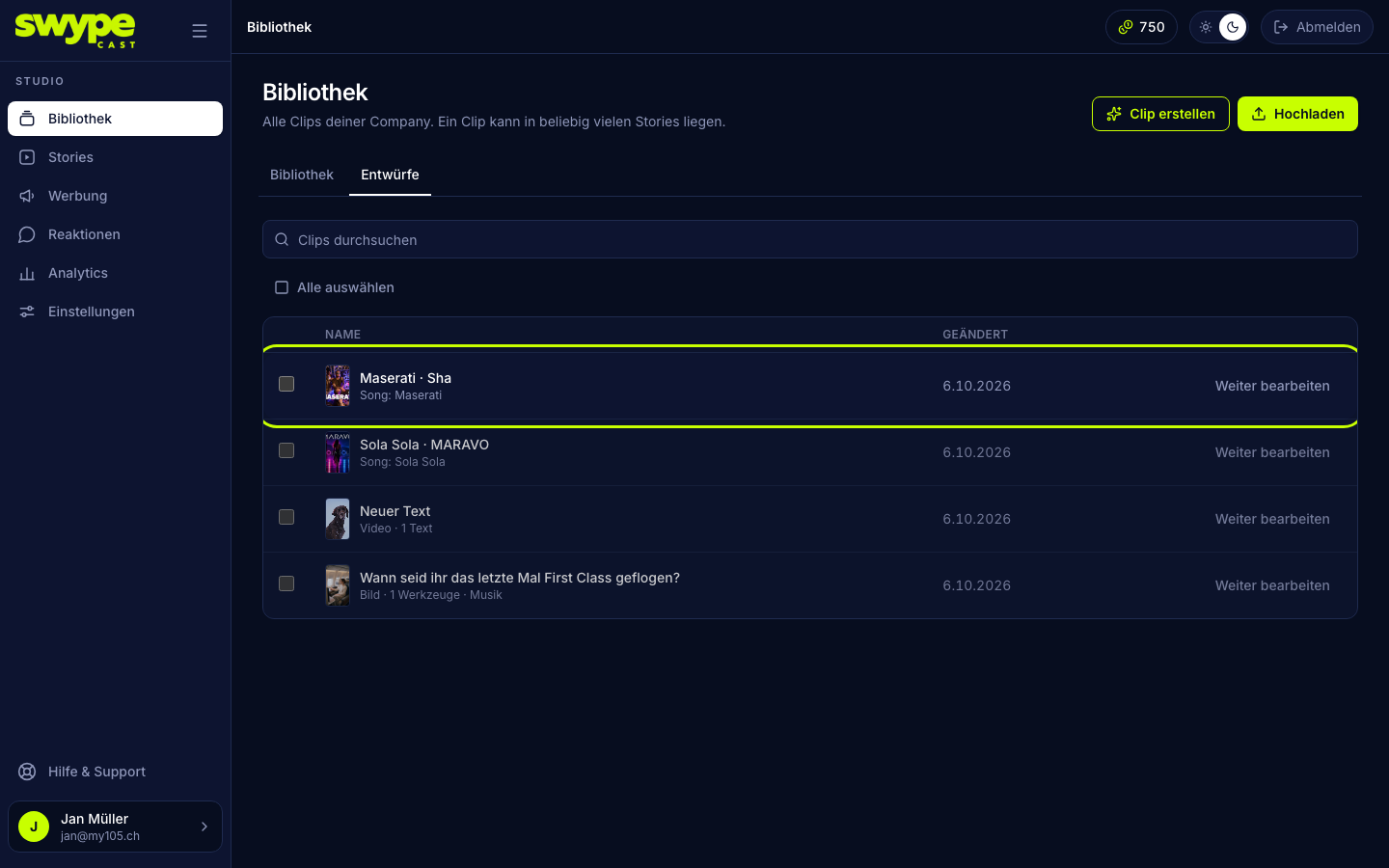
Drafts
- Click Create a clip in the Library. If your plan includes AI, a short dialog asks whether you want to Create with AI or Create by hand. Otherwise the editor opens right away.
- Everything saves itself. When you leave the editor, a note confirms: "Draft saved."
- You find the clip again under Drafts. One click opens it in the editor.
- The list can be searched. With the checkboxes you select several drafts and delete them at once.
A draft without content (no name of its own, no text, no medium, no sound, no tool, default background) does not appear in the list and is deleted after ten minutes.
Publishing
- Open the Publishing tab.
- Tick every story the clip should be in. From seven stories on, the search field helps.
- Stories that already hold the clip stand at the top and say included. Untick one of them and the clip leaves that story at the next creation.
- Click Create the clip. The clip goes into the library and to the end of every chosen story.
Without a tick the clip lives only in the library. Stories in draft are marked in the list.
Changing a finished clip
- In the Library, click Editor on the clip.
- If the clip has a draft, it opens. If you uploaded the clip, the editor starts a new draft with the clip's video or picture and sound as its background.
- Change what you like and click Create it again. A dialog asks first.
Creating again replaces the video of the existing clip. Stories keep their place, tags and call to action stay. The name comes from the draft.
Was this helpful?