
Help Center · Stories and clips
The editor on a phone
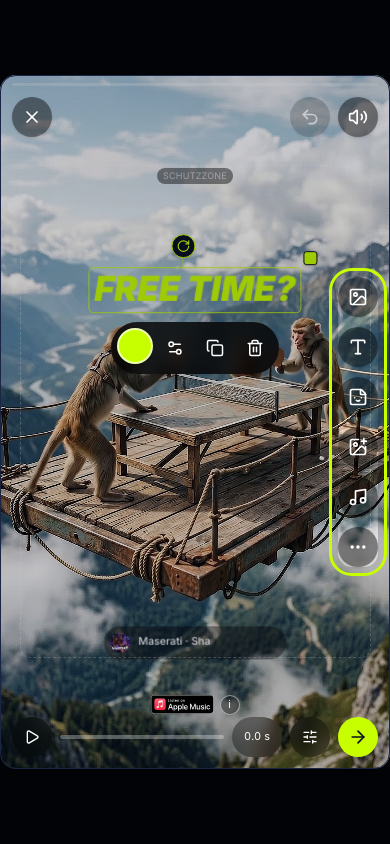
On a phone the editor works like a story editor: the clip fills the screen, the tools lie over it as round buttons, and every tool opens as a sheet from below.
Where to find it
Open a clip on the phone via Library → Create a clip or via Drafts. On narrow screens (under 1024 pixels wide, a tablet in portrait too) this view appears automatically, in the browser as in the app.
The buttons
- At the top left the × closes the editor and leads to the Drafts. Everything is saved anyway.
- On the right edge, one below the other: Background, Text, Tools, Insert and Music.
- The three dots (More) open Filter, Publishing, Layers and Origin and rights, plus Undo and Redo.
- At the bottom beside the timeline are play, the time (opens the length) and the mixer; the round arrow next to them leads to Finish.
How you work
- Tap a button. The tool opens as a sheet from below; the clip stays visible. Within one tool the sheet keeps its height, even when you switch between its tabs.
- Set what you need. The sheet scrolls inside. A choice closes the sheet by itself (a colour, a picture, a sticker); a soundtrack closes it once you take the passage with Insert. A tool stays open so you can fill in its fields.
- To close, tap the arrow at the top right of the sheet, tap beside the sheet or pull it down.
- Selection lists such as the font or the colour picker open as a sheet of their own over everything, with a search field at the top; that way they are never cut off.
- When you tap into a field, the sheet moves above the keyboard and the field stays visible.
- On the stage you move text, media and tools with your finger; every selected element has the turn grip at the top, the square for scaling at the corner and the toolbar below. Two fingers on an empty spot zoom the background. A long press on an inserted picture crops it.
- Tap the arrow at the bottom right. Under Finish you enter Name and Length, choose the stories and tap Create the clip.
If you start with Create by hand, the Background sheet is open right away.
Photos and camera
Uploading is done in the tools Background (under Visual → Mine), Insert (under Mine) and Music (under Uploads), each via the row Choose a file at the top. The phone offers your photos, videos and files there, and for pictures and videos the camera too. Videos that are too big are trimmed or shrunk by the editor before the upload.