
Help Center · Stories and clips
Votes on a clip
A vote is a tool on the clip. It asks a yes-or-no question, and viewers answer with a tap or a swipe. You see the result in the analytics. Votes and polls come with the Team plan and above.
Setting it up
- Library → Create a clip, then build the clip like any other: background, text, filter, music. You can also open a finished clip with Editor.
- In the Tools tab click Vote. The element then sits on the stage and can be moved, rotated and resized.
- Write the question under The question, e.g. "Should this go into the range?". Without a question the clip cannot be created.
- Under Yes means and No means you can label the two buttons differently; left empty they stay "Yes" and "No".
- With Show the result after voting you decide whether viewers see the result afterwards. Under Show the result as you choose Percentage and number of votes or Percentage only. The organisation’s setting uses what is set under Settings → Player.
The question is not in the video; it lies over it in the player. You can change it later and create the clip again; the votes collected so far stay. A clip can hold at most three tools.
What viewers see
The question appears where you placed the element, with a button with a cross for no and one with a heart for yes. Viewers answer by tapping a button. If the vote is the only tool in the clip, swiping works too (right for yes, left for no), and on a computer the arrow keys. As long as nobody has voted, the clip repeats so the question does not slip by unanswered. After that it continues normally.
Every viewer has one vote per vote element. Voting again changes the vote but never counts twice.
Viewing the result
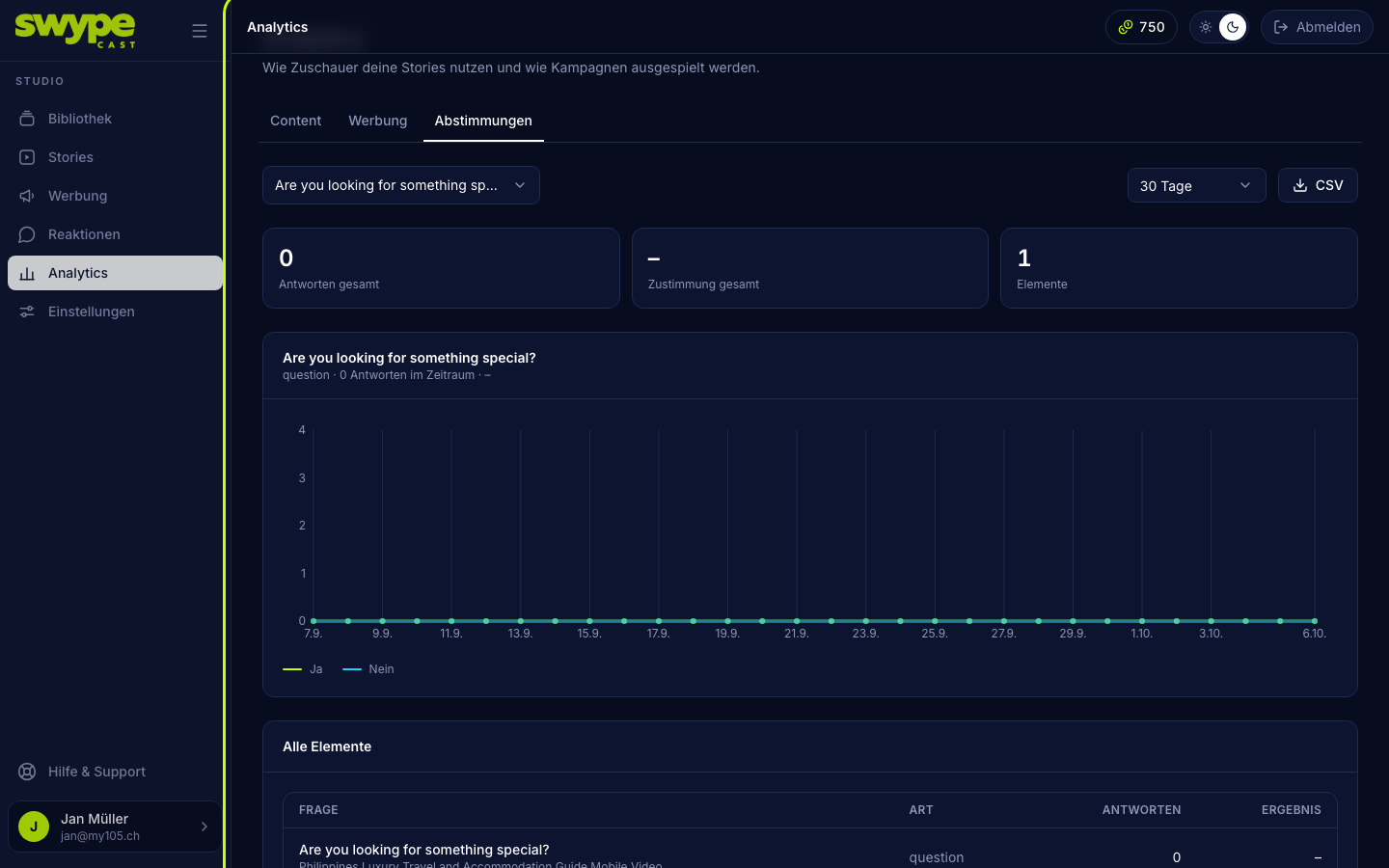
Analytics → Votes shows all votes, polls and barometers with the number of answers and the result, plus the daily trend of the chosen element. CSV downloads everything. Details under Analyse votes and polls.
A music clip from iTunes can also carry a vote; the preview then keeps playing until the viewer has voted.