
Help Center · Stories and clips
How viewers use the player
The player works like stories on social networks. No app and no sign-in needed.
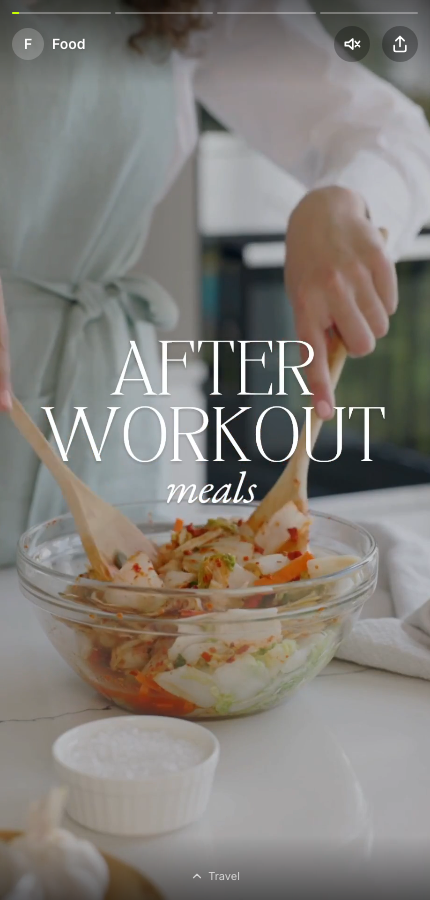
From clip to clip
- Tap the right part of the picture: next clip. Tap the left third: previous clip.
- Swipe left: next clip. Right: previous clip.
- Press and hold pauses the clip; letting go plays on.
- When a clip ends, the next one starts by itself. The bars at the top show where you are in the story.
From story to story
- Swipe up: your organisation's next story. Down: the previous one. You set the order in the story list.
- After the last story comes the first again.
- At the end of a story the next one starts automatically by default (adjustable per story).
Sound
The player starts with sound if the browser allows it. Otherwise it starts muted and shows Sound on; one tap is enough. The choice then holds for the whole session, also when moving between stories.
Reactions
The reactions sit in the comments window and, if you switched on Reactions in the foreground, permanently above the comment field too. Four emojis are ready for quick selection, more behind the +. Which four depends on what is used most in your story and your organisation. One tap counts, a second takes the reaction back. The counters are visible to everyone if you allow it.
Comments
Viewers write anonymously via the Comment… field; comments appear as "Guest". While the comments window is open, the clip keeps looping. What others see is decided by your moderation. When you reply to a comment in the studio, the reply appears indented below it in your organisation's name. From the Pro plan on, the player asks after the comment: Hear from us when we reply? Anyone who leaves an e-mail address gets exactly one mail when you reply; No thanks is remembered on the device.
Tools in a clip
If a clip contains a vote, a poll, a question, a prize draw or another tool, it lies over the picture. Viewers tap it to answer. A single vote can also be answered by swiping: right for yes, left for no. If a question stays open, the clip runs a second time, then the story moves on. For an open question, two approved answers stand at the element; n more answers opens the whole list as a sheet over the clip. More under Tools on a clip.
Buttons, music and profile
- A button in the clip opens your link.
- If a clip plays music from the library or from iTunes, the info button at the bottom opens details about the song, author and licence.
- The name at the top opens the profile with description, website and social profiles.
- The share button shares a link to the current clip.
Keyboard
On a computer: right and left arrows for clips, up and down arrows for stories. While a single vote is open, the right arrow (yes) and left arrow (no) answer it.